
Compress a video without uploading it
Pick a file, choose a target size or a quality level, and the compression runs inside this tab. Your video never leaves your device.
Compress a video
Target a size or pick a quality level. Everything happens in this tab.
Choose a video or drop it here
Read by this page, never uploaded. MP4, MOV, MKV, WebM, AVI, WMV, FLV and more.
Resolution, frame rate, audio, codec
Nothing is uploaded
FFmpeg runs in this tab. Turn your Wi-Fi off after the page loads and it still works.
Hit an exact size
Say "under 25 MB" and the bitrate is solved for you, two-pass.
No account, no watermark
No sign-up, no email, no logo burned into your video.
No file-size cap
No 100 MB paywall. The only limit is your browser's memory, around 2 GB.
How it works
Pick your video
It is read straight from your disk by this page. No upload, no queue, no account.
Set the target size
Type a number, or use a preset that matches the real limit. The bitrate is solved from the clip’s length.
Compress in the tab
FFmpeg runs in WebAssembly on your own machine. The first run downloads a 31 MB engine, once per browser.
Download it
The result is handed back as a file. Nothing was sent anywhere, so there is nothing to delete afterwards.
Compress for a specific limit
Compress a video for email
Targets 20 MB by default.
Open the compressor →Compress a video for Discord
Targets 9 MB by default.
Open the compressor →Compress a video for WhatsApp
Targets 15 MB by default.
Open the compressor →Compress a video to 8 MB
Targets 7.5 MB by default.
Open the compressor →Compress a video to 25 MB
Targets 24 MB by default.
Open the compressor →Compress an MP4
Quality-based, no target to pick.
Open the compressor →Compress a MOV file
Quality-based, no target to pick.
Open the compressor →Compress a video for Instagram
Quality-based, no target to pick.
Open the compressor →Reduce a video's file size
Quality-based, no target to pick.
Open the compressor →Compress a 4K video
Quality-based, no target to pick.
Open the compressor →Prefer to do it on your phone?
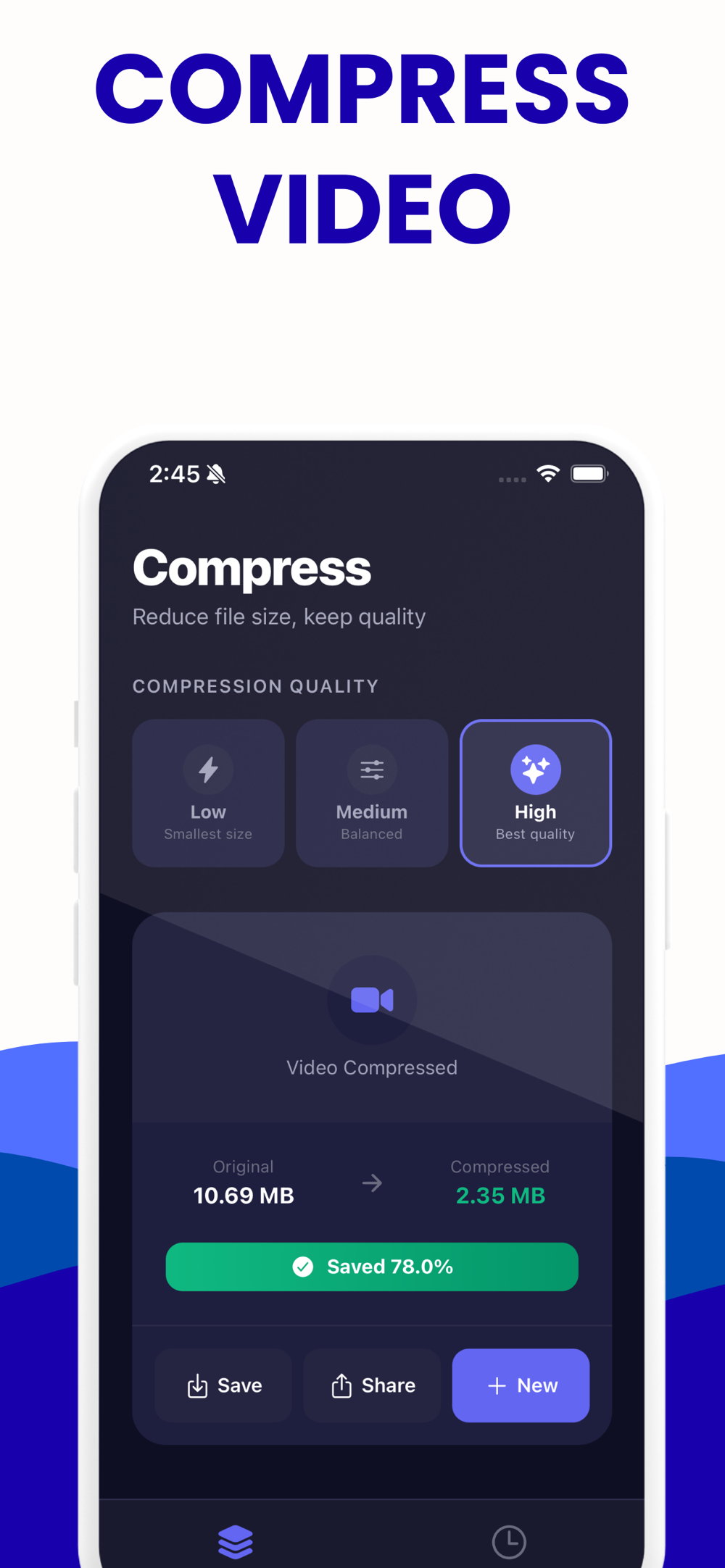
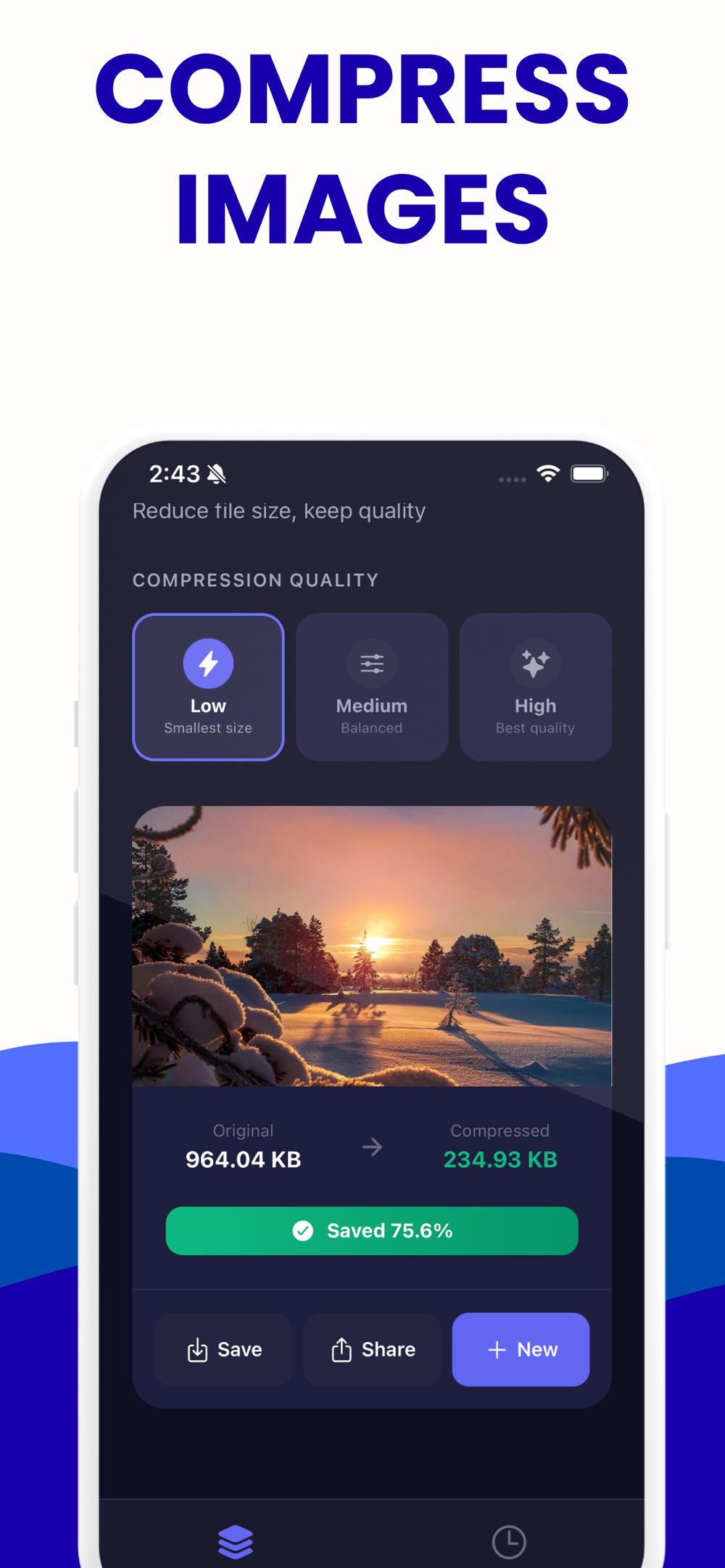
The iPhone app compresses on the device, where the video already is, using the phone’s hardware encoder - far faster than any browser tab.
Free to try on iPhone · No ads · Nothing is uploaded
Questions people actually ask
Short answers here, the full story in the guides.
Is my video uploaded to a server?
No. The compressor is FFmpeg compiled to WebAssembly and it runs inside this browser tab. Your file is read from disk by the page, processed in memory, and handed back to you as a download. You can load the page, disconnect from the internet, and compress anyway — which is the simplest proof there is.
Does compressing a video lose quality?
Yes, always — compression works by throwing information away. The honest question is whether you can see it. At a sensible bitrate for the resolution, most people cannot tell on a phone or laptop screen. Anyone promising "no quality loss" is describing the perception, not the file.
How do I compress a video to an exact size?
Switch the tool to Target size and type the number. It reads the clip's duration, subtracts the audio budget, solves for the video bitrate that fits, and encodes two-pass so the result lands under the target rather than near it.
Is there a file size limit?
No limit we impose, but a browser tab is bounded by WebAssembly's ~2 GB of memory, and a re-encode needs roughly three times the file's size free. Files up to a few hundred MB are comfortable. Above about 1 GB, the iPhone app is the better tool.
Is there a watermark?
No. No watermark, no logo, no intro frame, no account, and no upload cap to unlock by paying. The output is your video, compressed.
Which format should I compress to?
MP4 with H.264 video and AAC audio, unless you have a specific reason not to. It plays on effectively everything. H.265 gives you a smaller file at the same quality but encodes much slower here and is refused by some uploaders and older devices.
Why is my video so large in the first place?
Almost always resolution and frame rate. 4K at 60 fps carries eight times the pixels per second of 1080p at 30, and phones record at generous bitrates to survive editing. Downscaling to 1080p typically removes far more size than any quality slider.
Why is it slower than an upload-based compressor?
Because their servers have many CPU cores and hardware encoders, and this has one WebAssembly thread in your browser. You are trading time for your file never leaving your machine. Downscaling first makes it dramatically faster, since the cost is per output pixel.
Does it work on a phone?
It runs in mobile browsers, but a phone has far less memory to spare, so keep clips short. If you are compressing on a phone regularly, the iPhone app uses the hardware encoder and is much faster.
Can I compress several videos at once?
Not yet — one file at a time, in the tab. The compressor holds the whole file in memory, and running several at once is the fastest way to hit the browser's memory ceiling.
Will the compressed video still play everywhere?
With the H.264 MP4 default, yes: phones, browsers, TVs, editors and social apps all accept it. If you choose H.265, check the destination first — that is the one setting here that can produce a file something refuses to open.
My file got bigger after compressing. Why?
You asked for a bitrate higher than the source already used. Re-encoding never recovers detail, so the safeguard is to compare the output's bitrate with the original's, which the tool shows you before you start.
Learn more: Why Did My Video Get Bigger After Compressing? →
Compress on your phone instead
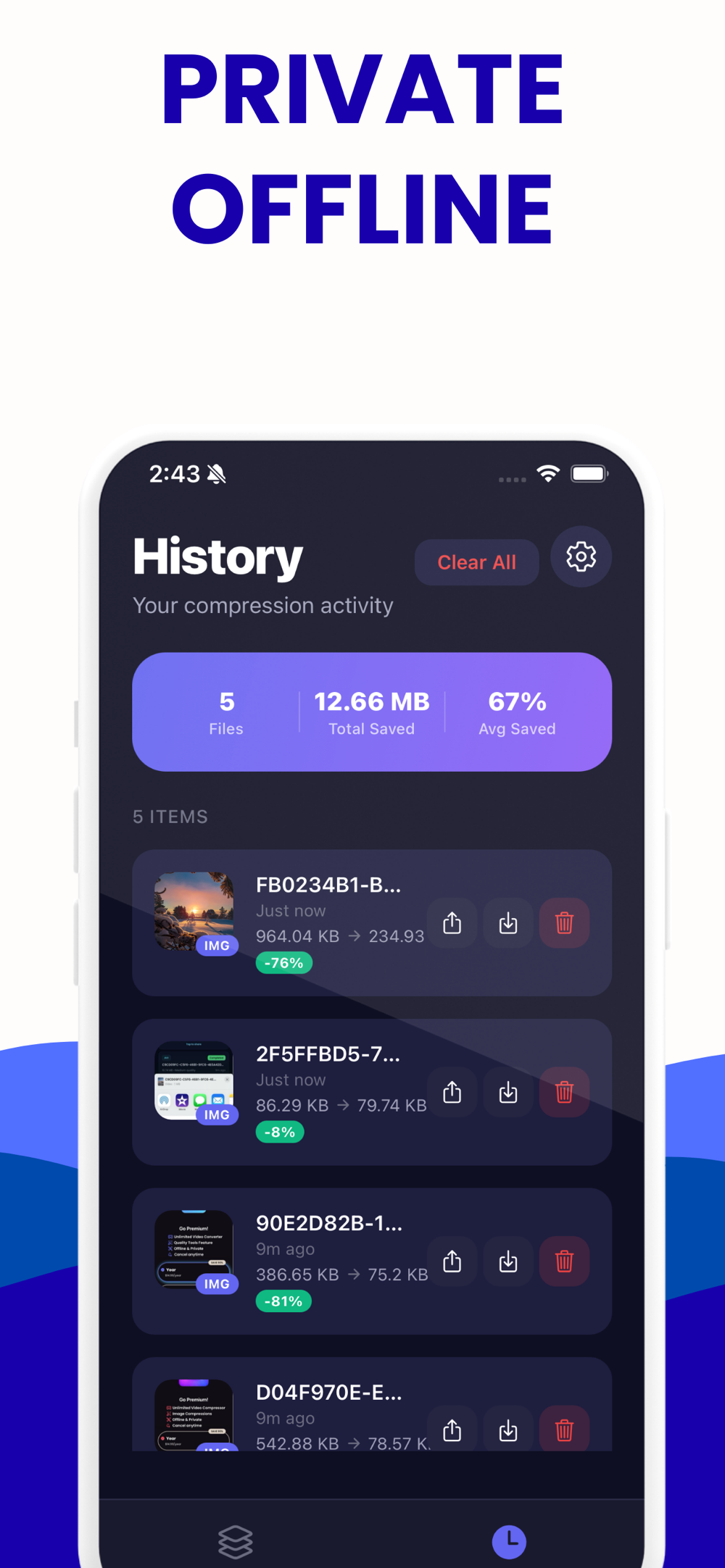
Same idea, native speed: the iPhone app compresses videos on the device, with nothing uploaded.